
By the end of this complete guide, you'll understand the fundamentals of WordPress and why it powers 43% of the web, how to build custom themes and plugins from scratch, best practices that separate amateur sites from professional ones, common mistakes to avoid and how to fix them, and how partnering with Zaman can elevate your WordPress journey.
What is WordPress Development?
WordPress development involves working with the WordPress content management system to create websites, applications, and digital experiences. But it's much more than that. It includes theme development which designs the visual appearance of your site, plugin development which adds custom functionality that extends WordPress's default features, custom post types for creating content structures beyond blog posts and pages, performance optimization to make your site load faster and rank higher on Google, security hardening to protect your website from hackers and vulnerabilities, and database management for optimizing how WordPress stores and retrieves your content.
WordPress.org vs WordPress.com
One of the first decisions you'll face is choosing between WordPress.org and WordPress.com. WordPress.org gives you complete freedom. You own your data, install any theme or plugin, customize code, and even monetize without restrictions. This is the recommended path for anyone serious about WordPress development. WordPress.com is a hosted service that's easier to start but comes with limitations. Lower-tier plans restrict customization and monetization. If you want full control, WordPress.org is the way to go. Zaman always advises choosing self-hosted WordPress if you plan to grow your online presence. The flexibility outweighs the initial learning curve.
Understanding the WordPress Ecosystem
To become proficient in WordPress development, you need to understand the ecosystem that makes WordPress tick. Every WordPress developer works with five essential technologies. HTML structures your content for the browser. CSS styles your website's appearance and layout. JavaScript adds interactivity and dynamic features. PHP is the backend language that powers WordPress functionality. MySQL is the database that stores all your content, settings, and user data. Think of these as your toolkit. Understanding how they work together is like learning the grammar of a language — once you know it, you can create anything.
The WordPress Dashboard
When you log into WordPress, you're greeted by the admin dashboard. Key sections include posts and pages where you create and manage content, the media library for storing images, videos, and documents, appearance for customizing themes, menus, and widgets, plugins for installing and managing extensions, settings for configuring site title, permalinks, and other options, and users for managing team members and permissions. The better you understand your dashboard, the more efficient your WordPress development workflow becomes.
The WordPress File Structure
A typical WordPress installation has three main folders. The wp-content folder is where all your custom work lives — themes, plugins, and uploads. During development, this folder is your best friend. The wp-core folder contains the WordPress core files. Never edit these directly because updates will override your changes. The wp-admin folder houses the administration interface. The golden rule is to always keep your custom work in the wp-content folder. This ensures updates to WordPress core won't break your customizations.
Creating Your First Custom Theme
Theme development is often the entry point for many WordPress developers. Every WordPress theme requires core files to function.
Essential Theme Files
The style.css file is mandatory. It tells WordPress who created the theme, what it's called, and defines your site's styling. Without it, your theme won't be recognized. The functions.php file acts as your theme's plugin. It adds features like custom menus, widgets, and image sizes. You can also hook into WordPress actions and filters to modify default behavior. The index.php file is the fallback template. If WordPress can't find a specific template for a page, it uses index.php. Every theme must have this file. The header.php and footer.php files keep your code DRY. Header.php contains your site's opening HTML, metadata, and navigation. Footer.php handles closing tags, copyright notices, and scripts.
Understanding the Template Hierarchy
WordPress uses a smart system called the template hierarchy to decide which file to load. The single.php file is used for individual blog posts. The page.php file is used for static pages. The archive.php file displays category archives, tag archives, and date-based archives. The category.php file overrides archive.php for specific categories. The tag.php file overrides archive.php for specific tags. The 404.php file shows when content isn't found. The search.php file displays search results. If a specific file doesn't exist, WordPress falls back to a more general file. For example, if single.php doesn't exist, it uses index.php. This hierarchy is powerful — it lets you control exactly how each type of content appears. Zaman recommends starting with a child theme when customizing existing themes. This allows you to update the parent theme without losing your customizations.
Custom Plugin Development
While themes control appearance, plugins control functionality. Custom plugin development is where true innovation happens. You don't need a custom plugin for everything because many ready-made solutions exist. However, you should build a custom plugin when you need functionality specific to your business that doesn't exist, when you're tired of paying recurring fees for premium plugins, when you need to optimize performance for a high-traffic site, when you want to integrate with external APIs or services, or when you're building a membership site, booking system, or custom e-commerce flow.
The Principle of Separation of Concerns
This is arguably the most important concept in WordPress development. If it should work regardless of theme, it belongs in a plugin. Imagine you create custom post types, shortcodes, and business logic inside your theme's functions.php file. Now imagine switching themes. Your functionality disappears. That's why custom functionality belongs in plugins — they work independently of design.
Plugin Development Best Practices
Best practices for plugin development include using unique prefixes for function names to avoid conflicts, always using WordPress database functions like $wpdb->prepare for security, checking user capabilities before performing sensitive actions, sanitizing all inputs and escaping outputs to prevent XSS attacks, documenting your code thoroughly, and version controlling your plugins using Git.
The Custom WordPress Development Process
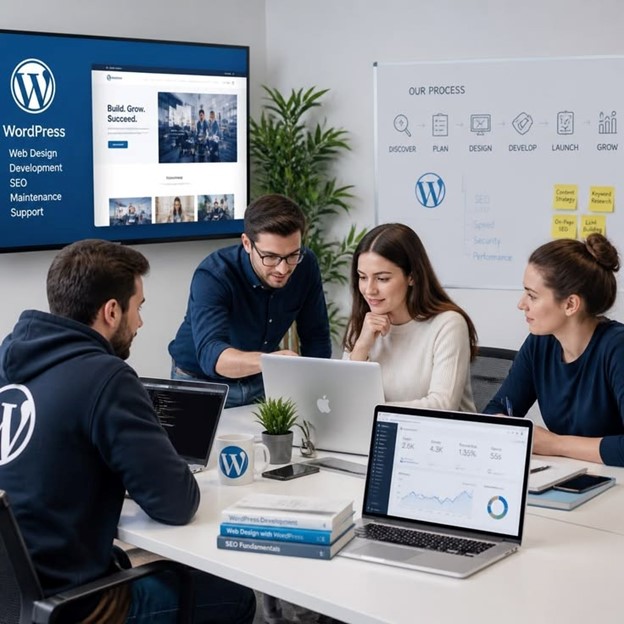
Building a custom WordPress site isn't a one-step process. It requires careful planning, execution, and maintenance.
Here is a practical framework:
Step 1: Define Your Business Goals
Before writing a single line of code, define your business goals. Ask yourself what the primary purpose of this website is, who your target audience is, what actions you want visitors to take, and how this site will generate value. When you define goals upfront, every WordPress development decision aligns with your strategy.
Step 2: Design User Experience
At the design stage, you'll create wireframes for basic layouts that map out structure, prototypes for clickable mockups that show user journeys, and design mockups with colors, typography, and branding. Good design isn't just about looking beautiful — it's about guiding users toward their goals efficiently.
Step 3: Development and Testing
This is where coding happens. Key priorities include building responsive layouts that work on all devices, ensuring the admin interface is easy for clients to use, testing navigation, forms, and interactive elements, and optimizing for performance because load speed matters for both user experience and SEO.
Step 4: Deployment and Launch
When launching a new site, create complete backups of files and database before any updates, test thoroughly on staging before deploying to production, check for broken links and 404 errors immediately after launch, and set up downtime alerts to catch issues quickly.
Best Practices for Professional WordPress Development
Following best practices ensures your websites are reliable, secure, and future-proof.
Coding Standards
WordPress has its own coding standards. Follow them to ensure your code is clean and consistent, compliant with WordPress guidelines, and less prone to errors.
Security Best Practices
Security can't be an afterthought. Always use prepared statements with $wpdb->prepare to prevent SQL injection, escape output with esc_html, esc_attr, and similar functions, check user permissions using current_user_can before performing sensitive actions, keep WordPress core, themes, and plugins updated, use strong passwords and two-factor authentication, and install a security plugin like Wordfence for additional protection.
Performance Optimization
Slow websites lose visitors and rankings. Optimize by loading CSS and JavaScript only on pages that need them, using build tools like Webpack to minify and bundle assets, implementing caching for both server-side and browser caching, using a Content Delivery Network for static assets, optimizing images by compressing before uploading, and reducing external HTTP requests.
Accessibility
An accessible website works for everyone, regardless of disability. Follow WCAG guidelines by providing alt text for images, using semantic HTML elements, ensuring keyboard navigation works, maintaining sufficient color contrast, and using ARIA labels where needed.
Essential Tools for WordPress Developers
The right tools make WordPress development faster and more enjoyable.
Local Development Environments
For local development environments, you can use LocalWP which is free and easy to use, Docker for container-based development, DevKinsta from Kinsta, or XAMPP and MAMP for classic local server environments.
WP-CLI Commands
WP-CLI is the command-line interface for WordPress. Essential commands include wp plugin list to view installed plugins, wp plugin activate plugin-name to activate a plugin, wp post list to list all posts, wp search-replace to update URLs in database, wp cache flush to clear cache, and wp user list to list users.
Code Editors And Quality Tool
For code editors, Visual Studio Code is highly recommended with WordPress extensions, PHPStorm is a powerful IDE for PHP development, and Sublime Text is lightweight and fast. Code quality tools like PHP_CodeSniffer check code against WordPress coding standards, ESLint ensures JavaScript code quality, and Prettier automatically formats code.
Common Mistakes to Avoid
Even experienced WordPress developers make mistakes. Here's what to watch out for.
Never edit WordPress core files because updates will override your changes. Always use custom themes and plugins. Hardcoding URLs makes it impossible to migrate your site. Use WordPress functions like home_url and site_url instead. Over sixty percent of web traffic comes from mobile devices, so ensure your theme works flawlessly on phones and tablets. Over time, databases accumulate post revisions, spam comments, and transients. Clean them regularly using plugins like WP-Optimize. You'll regret skipping backups when something breaks, so implement automated backups using plugins like UpdraftPlus or your hosting provider's backup service. Never test changes directly on a live site. Use a staging environment to catch issues before they affect visitors.
The Future of WordPress Development
WordPress continues to evolve. The block editor has transformed content creation. As a developer, you need to understand block development, custom blocks, and the Site Editor for full-site editing. Using WordPress as a headless CMS allows you to deliver content to multiple platforms like web, mobile apps, and IoT devices through APIs. React, Vue.js, and Next.js are popular frontends for headless setups. AI tools are transforming content creation, personalization, and automation. Developers are integrating AI-powered chatbots, recommendation engines, and content generation into WordPress. Core Web Vitals are now ranking factors, so developers must prioritize speed, interactivity, and visual stability.
Conclusion
WordPress development is more than just a technical skill — it's a gateway to unlimited digital possibilities. Whether you are launching your first blog, growing a business website, or building a complex web application, WordPress provides the foundation you need to succeed. But the real power lies in customization. Off-the-shelf themes and plugins can only take you so far. To truly stand out, you need solutions that are tailored to your unique goals, brand identity, and audience expectations.
This WordPress development guide has walked you through the essential building blocks — from understanding the core technologies and file structure to creating custom themes, developing plugins, following best practices, and avoiding common mistakes. Remember these key takeaways: start with a clear plan, use best practices, invest in performance, never stop learning, and partner with experts when you need to accelerate your success.
WordPress development offers endless opportunities to create powerful, customized, and professional websites. A successful website requires clear planning, customization, good performance, security, and continuous learning. By following best practices and focusing on users' needs, you can build a website that stands out and grows with your goals.
Ready to Build Your Custom WordPress Site?
Get a free consultation and discover how a trusted WordPress developer can help your business thrive online.
Frequently Asked Questions
What is the difference between a WordPress developer and a web designer?
A WordPress developer handles coding, themes, and functionality. A web designer focuses on colors, layout, and user experience.
How long does it take to build a custom WordPress site?
A simple site takes 2 to 4 weeks. A complex site with custom features takes 2 to 3 months.
Is WordPress development difficult to learn?
It has a learning curve but it's accessible. With consistent practice, you can become proficient in 3 to 6 months.
Why should I choose custom WordPress development over page builders?
Custom development offers unlimited flexibility, cleaner code, better performance, and complete control. Page builders are limited and slower.
How much does custom WordPress development cost?
A simple custom theme costs $500 to $2,000. A full-featured site costs $5,000 to $50,000+.